Help Center
How to get set up on the mobile app
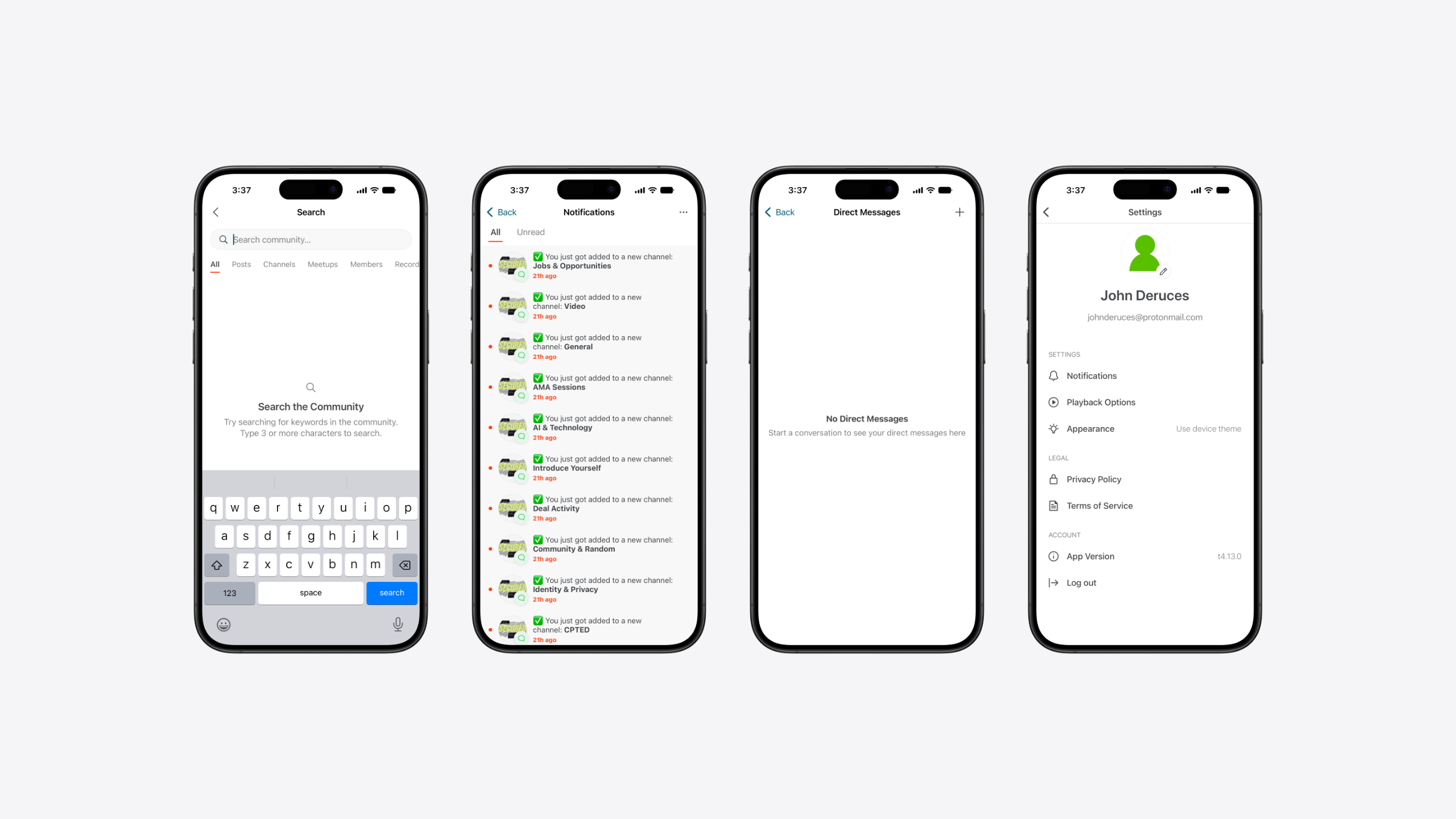
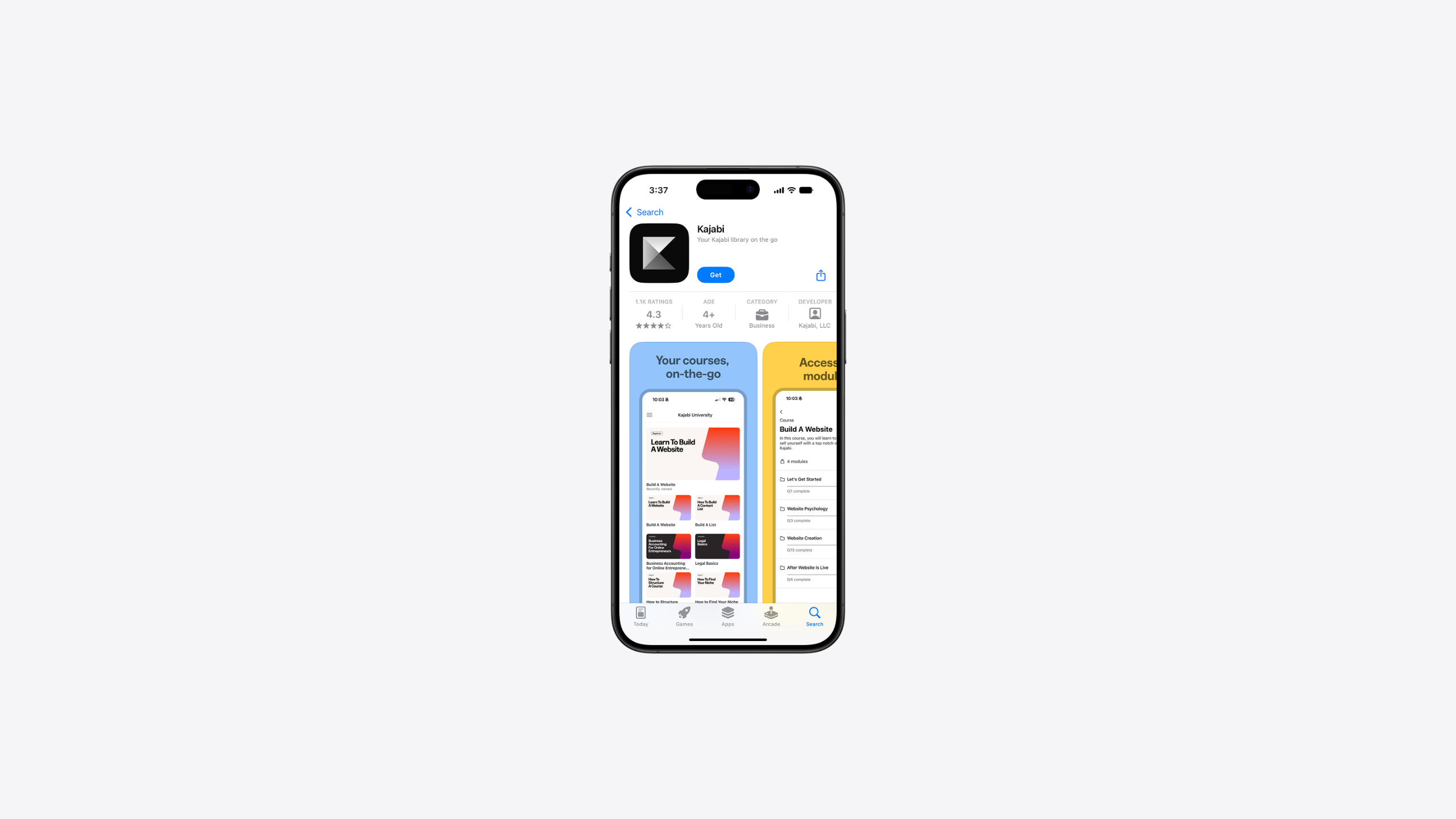
Take Secured with you — download the Kajabi app to access The Secured Collective community right from your phone.
Step 2: Log in
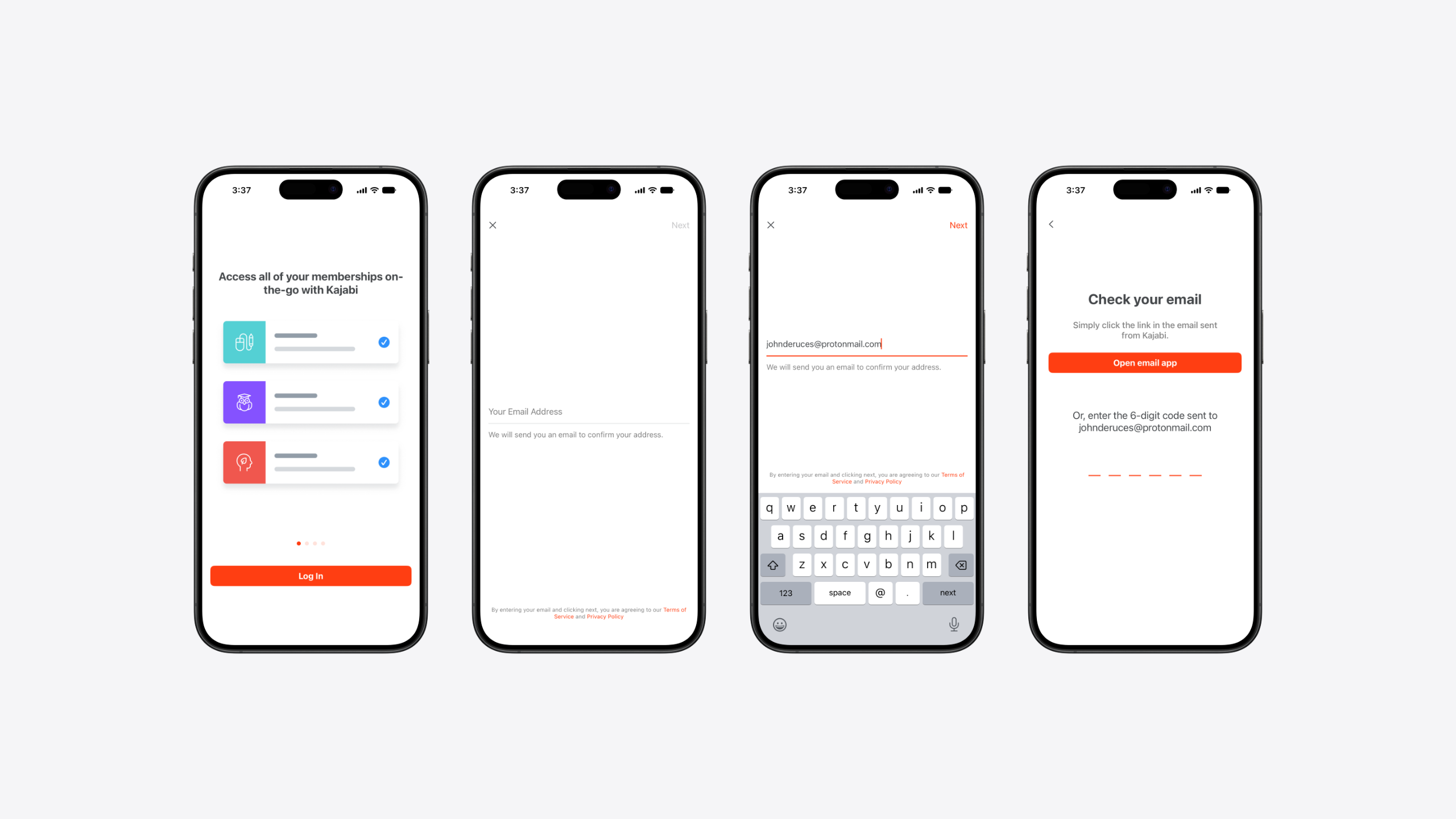
- Open the app and tap Log In.
- Enter the email address you used to sign up for Secured, then tap Next.
- Check your email for a 6-digit code sent from Kajabi. Either tap the link in the email, or enter the code directly in the app.
Step 3: Allow notifications
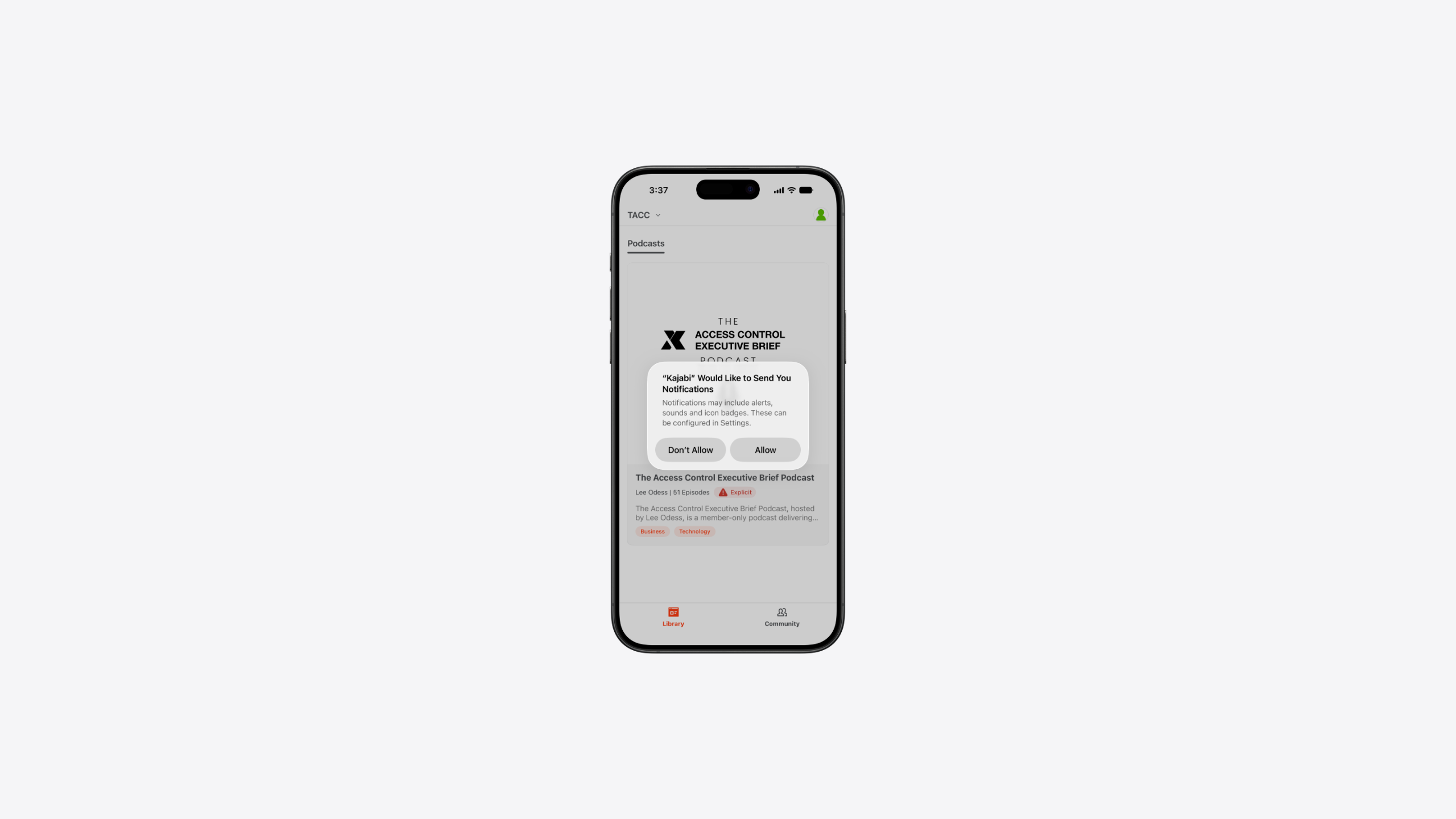
If this is your first time logging in, you may be asked whether to allow notifications. We recommend allowing them, so you never miss a new post, reply, or update — but it's entirely up to you.
Step 4: Head to the Community
You'll land on your Library screen first. Tap Community in the tab bar at the bottom to enter The Secured Collective.
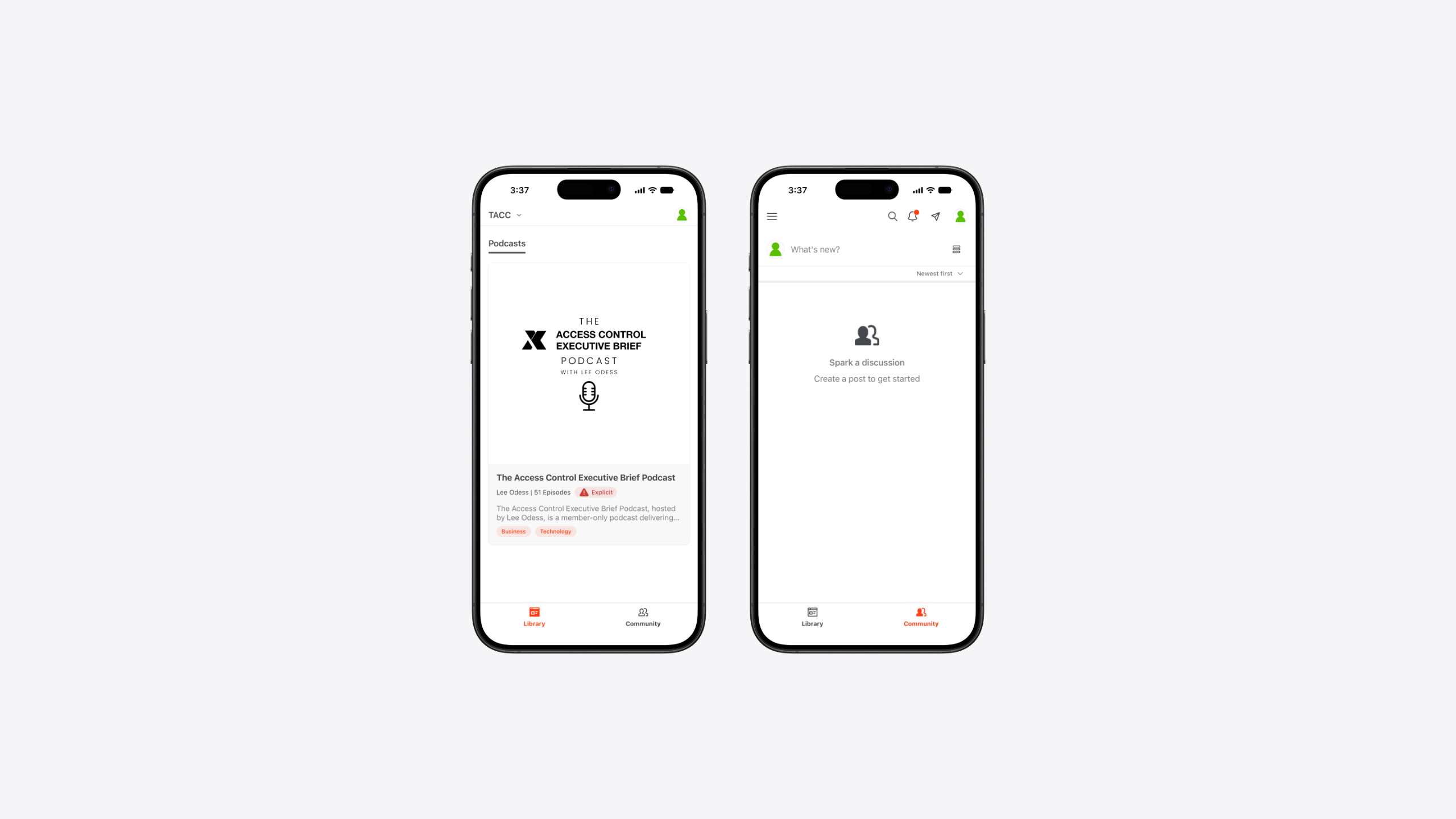
Step 5: Explore the channels
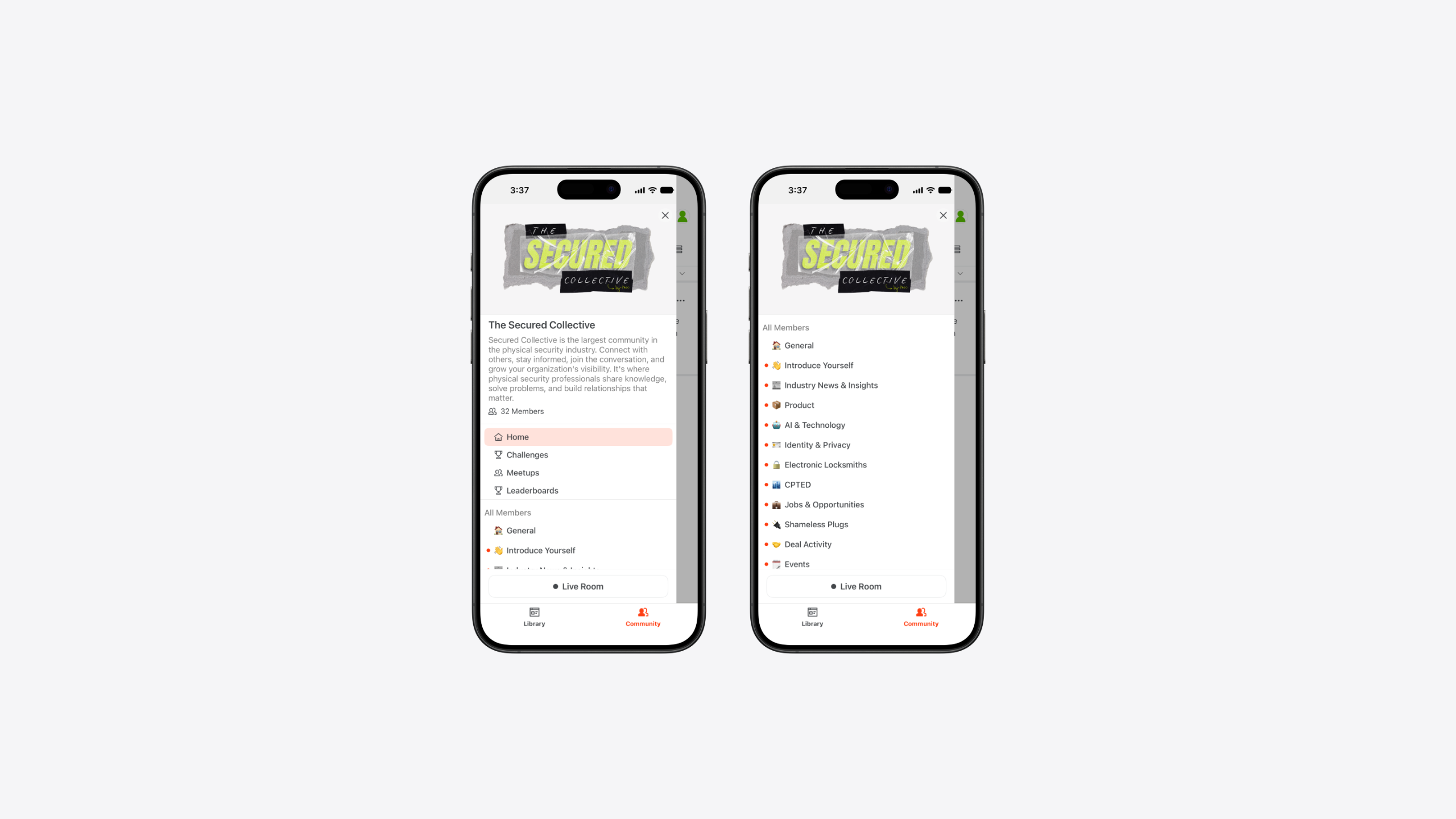
Tap the menu icon in the top left corner to open the full list of channels — everything from Industry News & Insights to AI & Technology, CPTED, Jobs & Opportunities, and more.
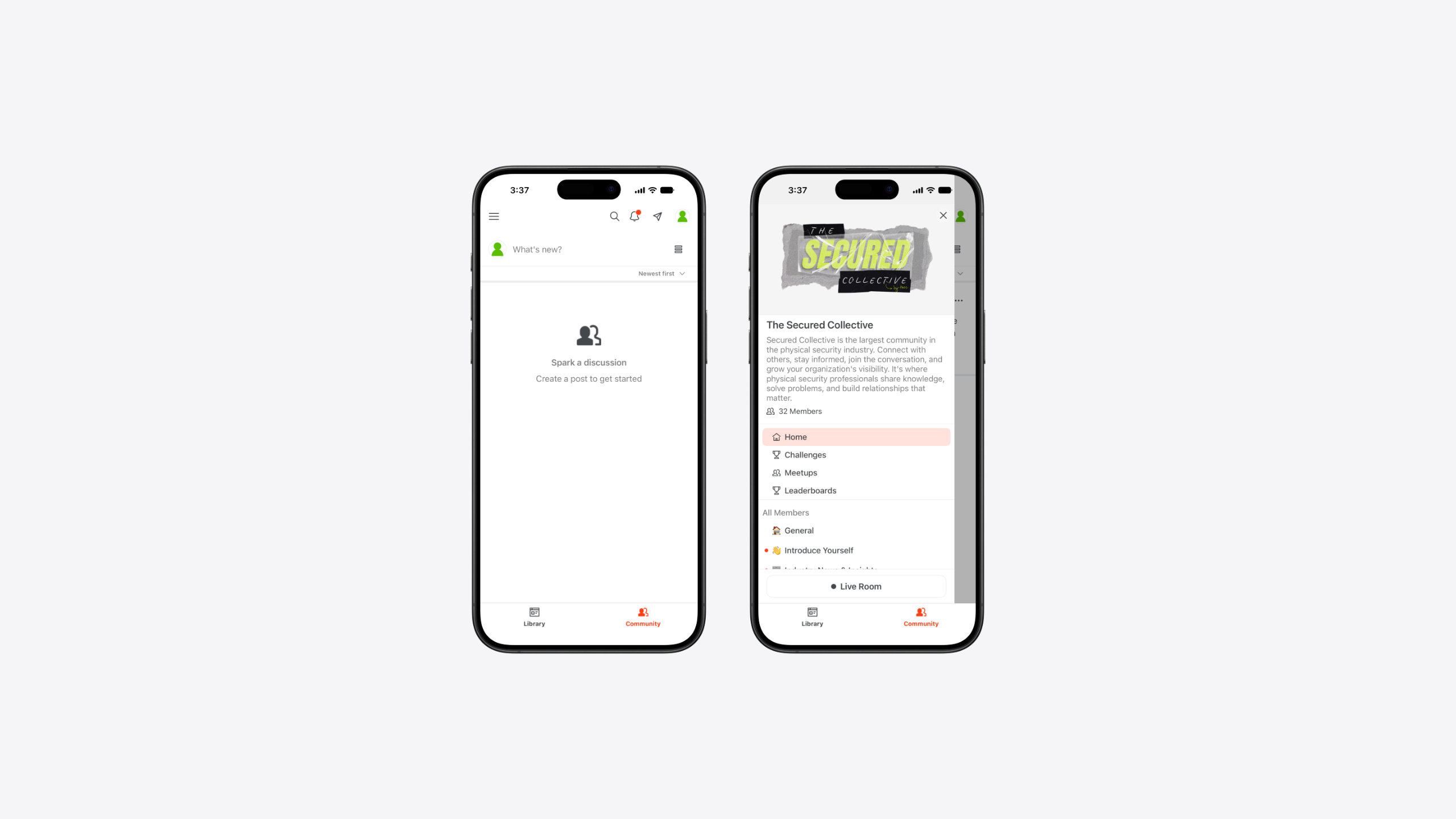
Step 6: Introduce yourself
First time here? Head to the Introduce Yourself channel and let the community know who you are.
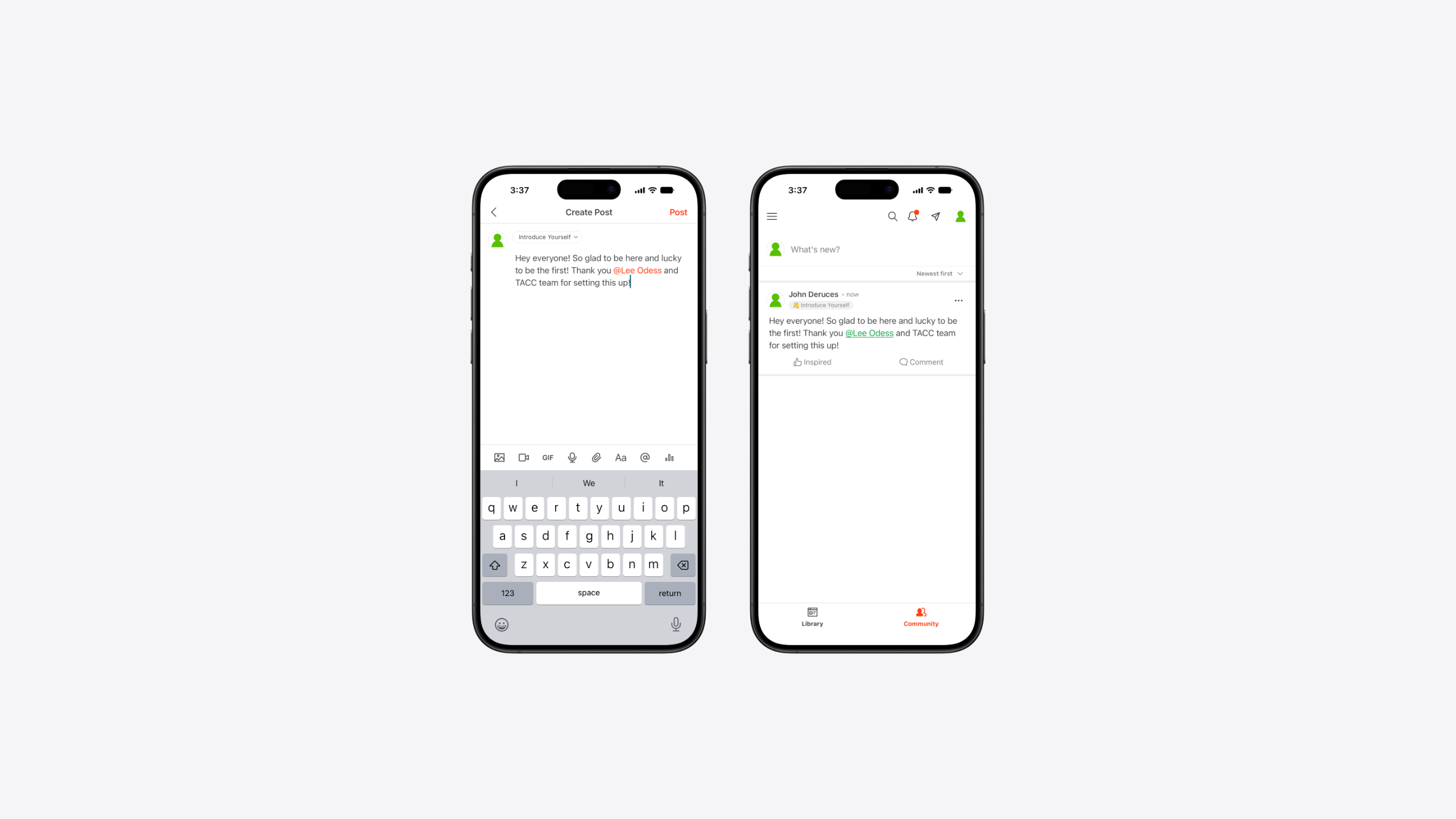
Step 7: Write your post
Tap What's new? at the top of the feed, then type your message. (You'll notice the channel is already set to Introduce Yourself. In future, if you'd rather post somewhere else, just tap the channel name to pick a different one).
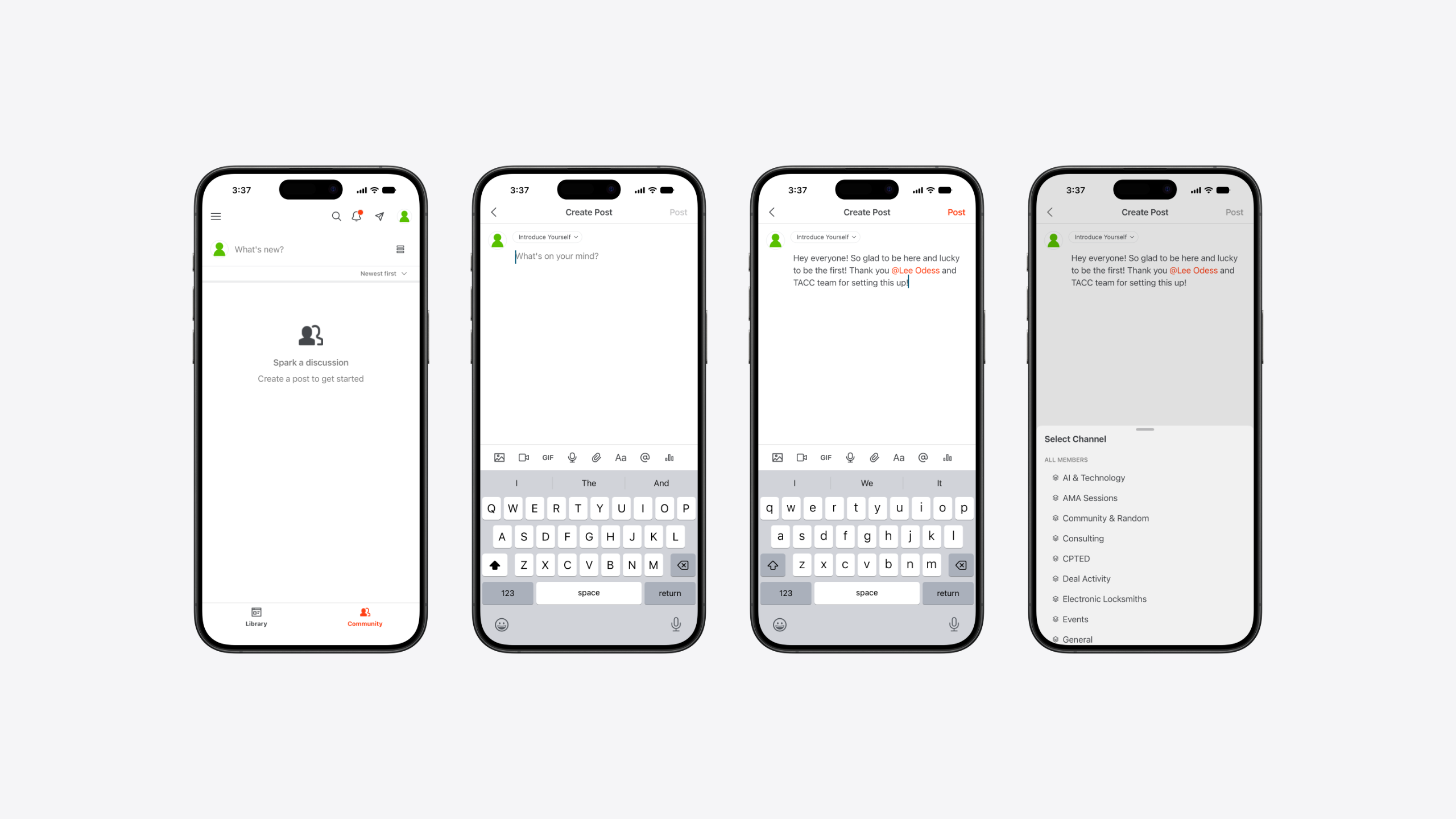
Step 8: Post it
Tap Post, and you're back on the Introduce Yourself feed — with your very first post live for the community to see.
Step 9: Get to know the toolbar
In the top right corner of any community feed, you'll find four icons that make navigating Secured even easier:
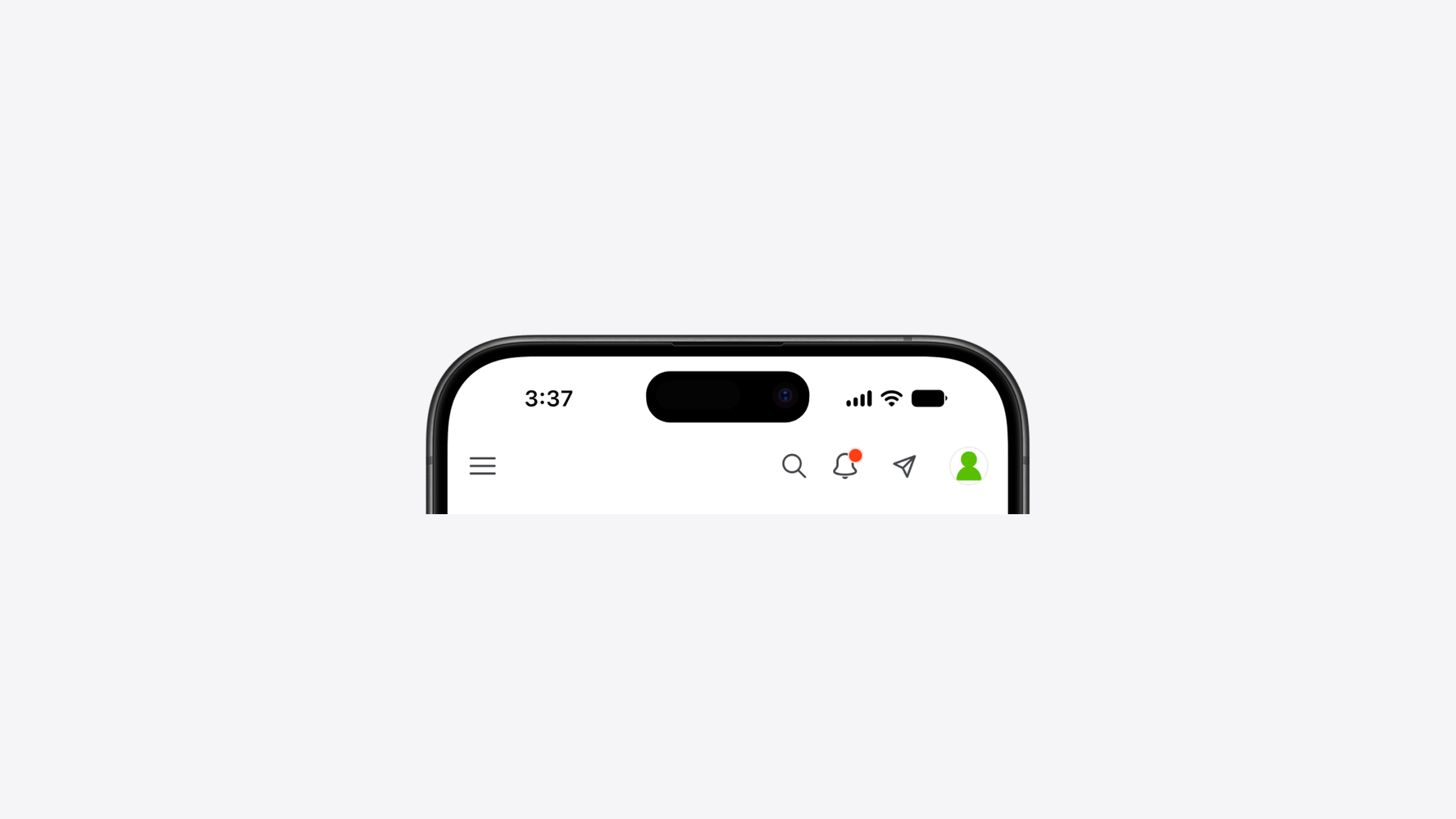
- Search — find anything across the community
- Notifications — catch up on mentions, replies, and updates
- Direct Messages — check for private messages from other members
- Settings — manage your notification preferences and more